Set up VBS AI
Install your bot, unlock it with your password and start watching for slots. It takes about five minutes.
Install on Chrome
One extension from the Chrome Web Store, installed once. Your password decides which ports it unlocks for you.
Add it from the Chrome Web Store
Click the button below, then press Add to Chrome on the store page.
↓ Add VBS AI Slot Bot to Chrome
Pin it so you can find it
Click the puzzle-piece icon in Chrome's toolbar, then click the pin next to VBS AI. Its icon now stays in the toolbar.
Unlock it with your password
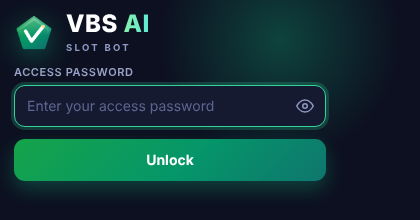
Click the VBS AI icon, type your access password and press Unlock. There's only ever one password to remember — it unlocks whichever ports your account is set up for.
See which ports are yours
Once you unlock, the popup lists all four ports and shows which ones your account can use — Pentalver, Tilbury, Felixstowe and Southampton. Any port you're not paying for is greyed out and marked "not on your plan".
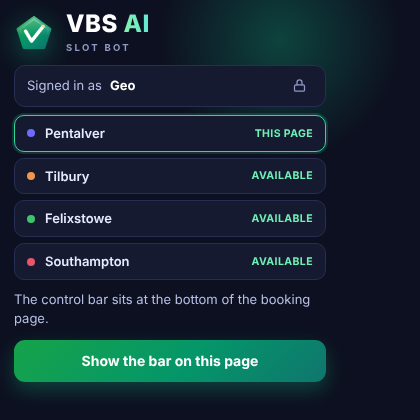
Signed in once, every port you're entitled to shows up here.
Open a port and press START
If you're already on one of your ports' booking sites, click Show the bar on this page. If you're not there yet, just click the port's name in the list — it opens the site for you and the bar is already showing by the time the page loads.
Use the arrow on the bar to open its settings, choose what you want, then press START. Press STOP at any time.
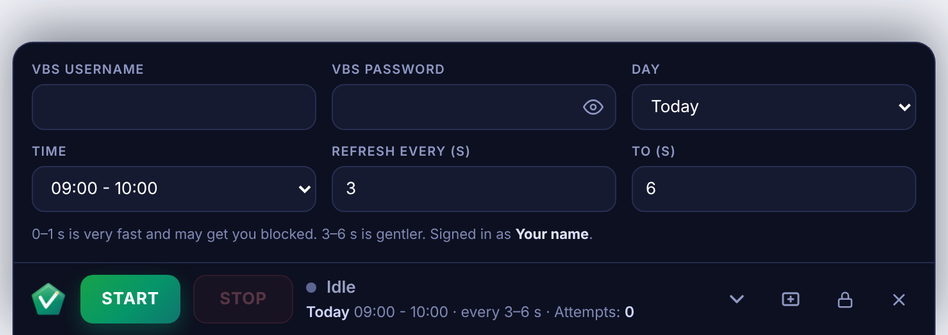
The bar (Felixstowe shown). The padlock signs out and frees your password. The X hides the bar and stops the bot.
The bot works while Chrome is open and the computer is on and online, even with the screen locked. It stops if the computer goes to sleep.
What each port's bar looks like
The settings are a little different for each booking system.
Pentalver
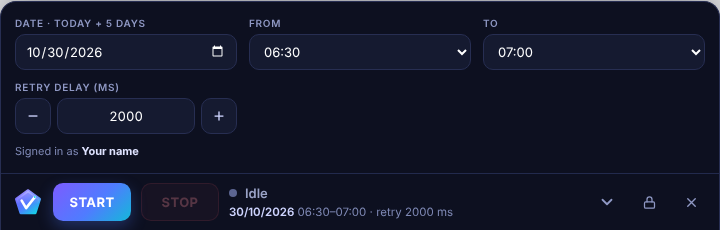
Choose the Date, the From and To times and the Retry delay. Works on both pick-ups and drop-offs on the Add Visit form.
Tilbury
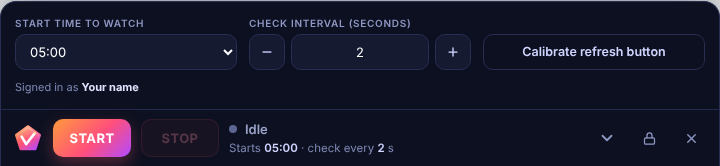
Choose the start time to watch and the check interval. The first time, press Calibrate refresh button and click the page's own refresh button once.
Felixstowe
Felixstowe is the only port that needs your own VBS login, entered once in the bar's Website username / password boxes. Choose the Day, Time and refresh speed. Pick your terminal and fill in the container details on the page first, then press START. If the site logs you out, it signs back in and puts your choices back. It stops by itself when the booking is complete. You can also open a separate, independently logged-in session from the bar's own icons.
Southampton
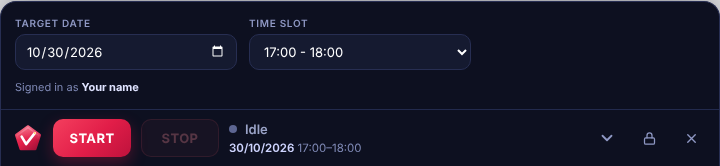
Choose the Target date and the Time slot, then press START.
Install on Android
The phone app works the same way, with the bar at the bottom of the screen.
Install the app
Open the VBS AI app file you were sent (an APK). If your phone asks, allow installs from that source, then press Install.
Choose your port
Open the app and tap the port you need.
Unlock it once
Type your VBS AI password and press Unlock. Leave Remember password on this phone ticked and you will not need to type it again.
Sign in and press START
The booking site opens inside the app. Sign in as normal, choose your settings in the bar at the bottom and press START. START and STOP work even when the bar is folded away.
While a bot is running, a notification shows what it is doing. Tap it to come back to the bot.
Help
"This password is already in use on another device"
Your password works on one device at a time. Press the padlock on the other device to sign out, then unlock here.
A port says "not on your plan"
Your account isn't set up to use that port yet. Email us and we'll add it, or point you to the right plan.
The bar is not on the page
Click the VBS AI icon, find the port in the list and click it (or click Show the bar on this page if you're already there), then refresh the booking page (press F5) if it still doesn't appear.
It stopped when my computer went to sleep
Change the computer's sleep setting so it stays awake while the bot runs. A locked screen is fine, sleep is not.
A new version isn't showing up
Chrome updates extensions from the Web Store automatically in the background, usually within a few hours. To force it sooner, go to chrome://extensions, turn on Developer mode (top right) and press the refresh icon on VBS AI, then refresh the booking page.
It looked on the wrong day
Check the Day (or Date) setting in the bar before you press START.
Still stuck? Email hello@vbsai.app and say which port you are using.